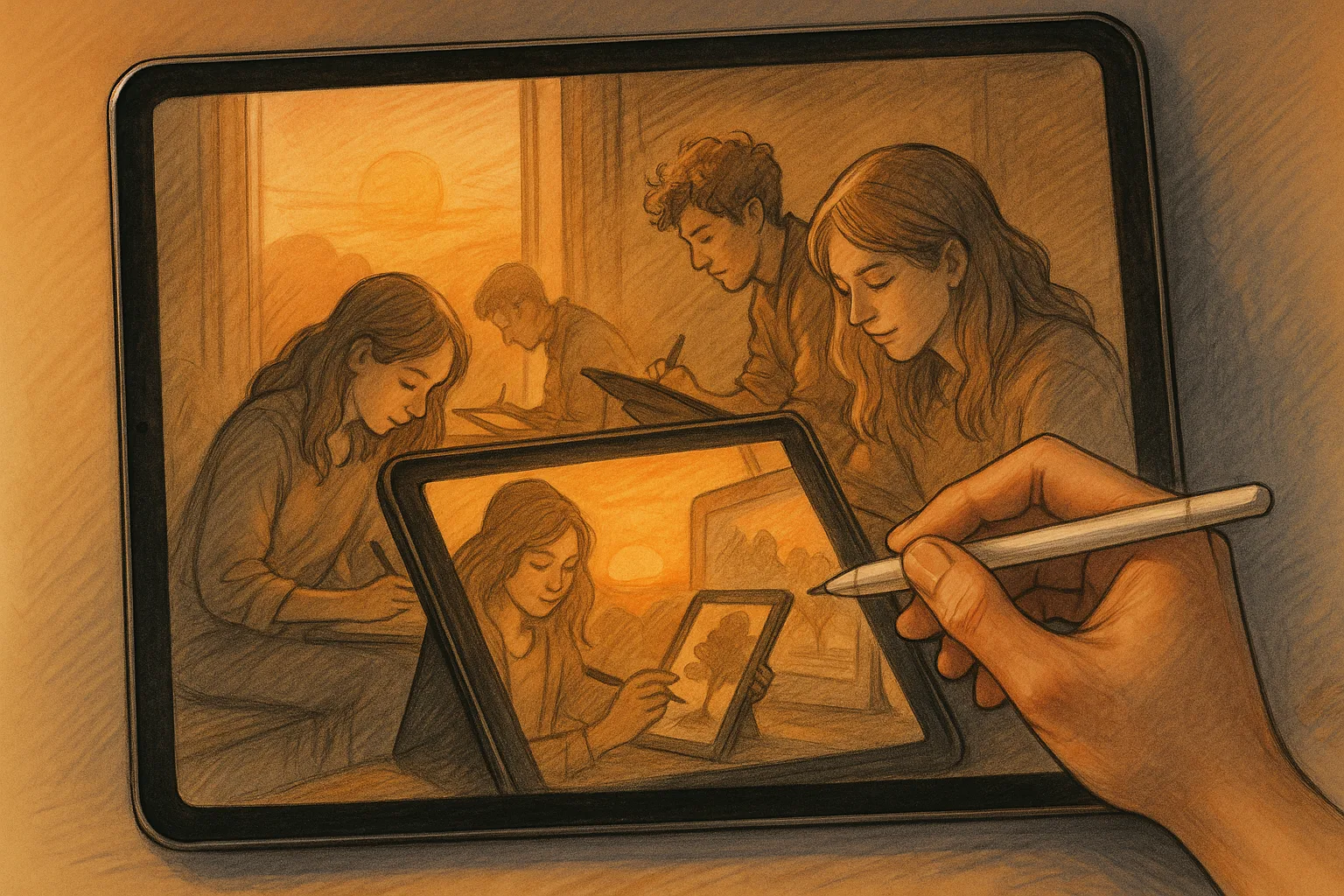
Why sketch landscapes on iPad with Procreate?
Digital sketching on an iPad gives you the speed and portability of plein air drawing with the flexibility of a studio. For a region like Samara — with the Volga’s wide horizons, the Zhiguli hills, tree-lined embankments and varied urban architecture — Procreate lets you capture light, texture and mood quickly, iterate without limits, and produce high-resolution pieces for print or social sharing.
Quick gear checklist
— iPad (Pro or Air recommended for performance)
— Apple Pencil (2nd gen preferred for tilt and double-tap shortcuts)
— Protective screen (paper-like for better pencil feel)
— Portable stand or lightweight sketch stool for comfortable outdoor work
— Power bank (if you’re sketching long sessions on the embankment)
— Reference photos or a small tripod if you want stable photo captures
Canvas and performance: recommended settings
— Canvas size: 3000–4000 px on the longest side for web; 4000–6000 px at 300 dpi if you plan to print. For very long panoramas (Volga embankment), 6000 x 2500 px is a useful ratio.
— Color profile: sRGB for web, Adobe RGB / ProPhoto for print (if you intend to print, convert/export in final step).
— Layers: keep layers under ~30 for smoother performance on older iPads; group and rasterize when ready.
— Turn on Reference (Actions > Canvas > Reference) for quick color picking without losing your place.
Useful Procreate brushes and settings
— Sketching: 6B pencil or Technical Pencil with medium pressure and 10–25% streamline for loose marks.
— Inking: Technical Pen for clean architectural lines (use StreamLine 10–30% for steady strokes).
— Block-in color: Round Brush or Soft Brush at 40–70% opacity.
— Textured marks: Gouache/Watercolor brushes for atmosphere; Charcoal and Dry Brush for rough textures on cliffs or sand.
— Details and highlights: Small Monoline or Liner brushes at 2–6 px.
— Splatter/grain: use a splatter brush for sand/distant foliage texture; consider clipping masks to confine texture.
— Tip: create a small custom brush that emulates birch bark or grass stroke for faster detailing.
A practical 6-step workflow
1. Thumbnail and composition
— Make 3 quick thumbnails (small canvas or quick sketch layer) to choose the strongest composition: wide Volga panorama, intimate birch grove, or city skyline from the embankment.
2. Blocking shapes and values
— Use a large brush to establish sky, water, land masses and major value planes. Keep values simple: foreground darkest, midground mid-values, sky and distant hills lighter.
3. Refine line and structure
— Add structural lines for buildings, cliffs or trees on a new layer. Use Technical Pen for crisp edges and a softer pencil for organic forms.
4. Color and atmosphere
— Lay down local color. Use soft brushes and low opacity to build atmospheric perspective (cooler, desaturated colors as distance increases).
5. Texture and detail
— Add textures for water ripples, brickwork, grasses, or volcanic-like Zhiguli rock faces. Use clipping masks for controlled application.
6. Final polish and mood tweaks
— Add focal highlights, adjust contrast with a Curves layer, and use a subtle vignette or grain layer to unify the piece.
Composition ideas specifically for Samara
— Volga sunset panorama: place the river as a leading line from foreground bottom-left to the distant bend; include boats or fishermen as small silhouettes.
— Samara Embankment (Naberezhnaya): capture the promenade’s human scale with benches, trees and the water reflecting city lights.
— Zhiguli cliffs and Samarskaya Luka: emphasize dramatic rock silhouettes against an open sky; use scale by adding tiny trees or a distant car.
— Urban sketch of the city center: focus on contrast between Stalinist blocks and modern glass facades; use angle and shadow to dramatize architecture.
— Birch and pine groves near the suburbs: practice quick rhythm marks for trunks and vertical textures; use layered greens with warm highlights.
On-location tips (plein air with iPad)
— Work in quick 10–20 minute studies for changing light; capture the main values and color temperature before details.
— Use Photo Reference: take a few photos from the same spot (one with polarizing filter if available to reduce glare).
— Lock screen brightness and set Auto-Lock to a longer time to prevent interruptions.
— Protect your screen from reflections: position so the sun is behind you, or use a small umbrella/hood.
Color, light and atmosphere hacks
— Warm foreground / cool background: to emphasize depth, push warmer hues in the foreground and cooler blues in the distance.
— Reflections on the Volga: sample colors from sky and nearby objects, reduce saturation and blur horizontally for water.
— Golden hour trick: add a low-opacity layer set to Overlay or Soft Light with warm orange to unify the scene.
Useful Procreate features to speed workflow
— QuickShape (hold after drawing a line) for perfect horizons and architectural edges.
— Alpha Lock + Smudge: texture an area without masking.
— Clipping Masks: paint effects only on a specific layer without altering others.
— Reference Layer & ColorDrop: speed fills and color sampling.
— Gesture shortcuts: two-finger undo, three-finger redo, and double-tap Apple Pencil shortcut to switch tools (customize in Settings).
Exporting and sharing
— Export as PNG for lossless web images; export layered PSD if you want to continue editing in desktop apps.
— For Instagram or web: crop to preferred aspect ratios (square, 4:5). Save a high-res TIFF or JPEG for prints.
— Add a small caption or location tag: “Volga bend, Samara — iPad + Procreate study” to give context.