Introduction
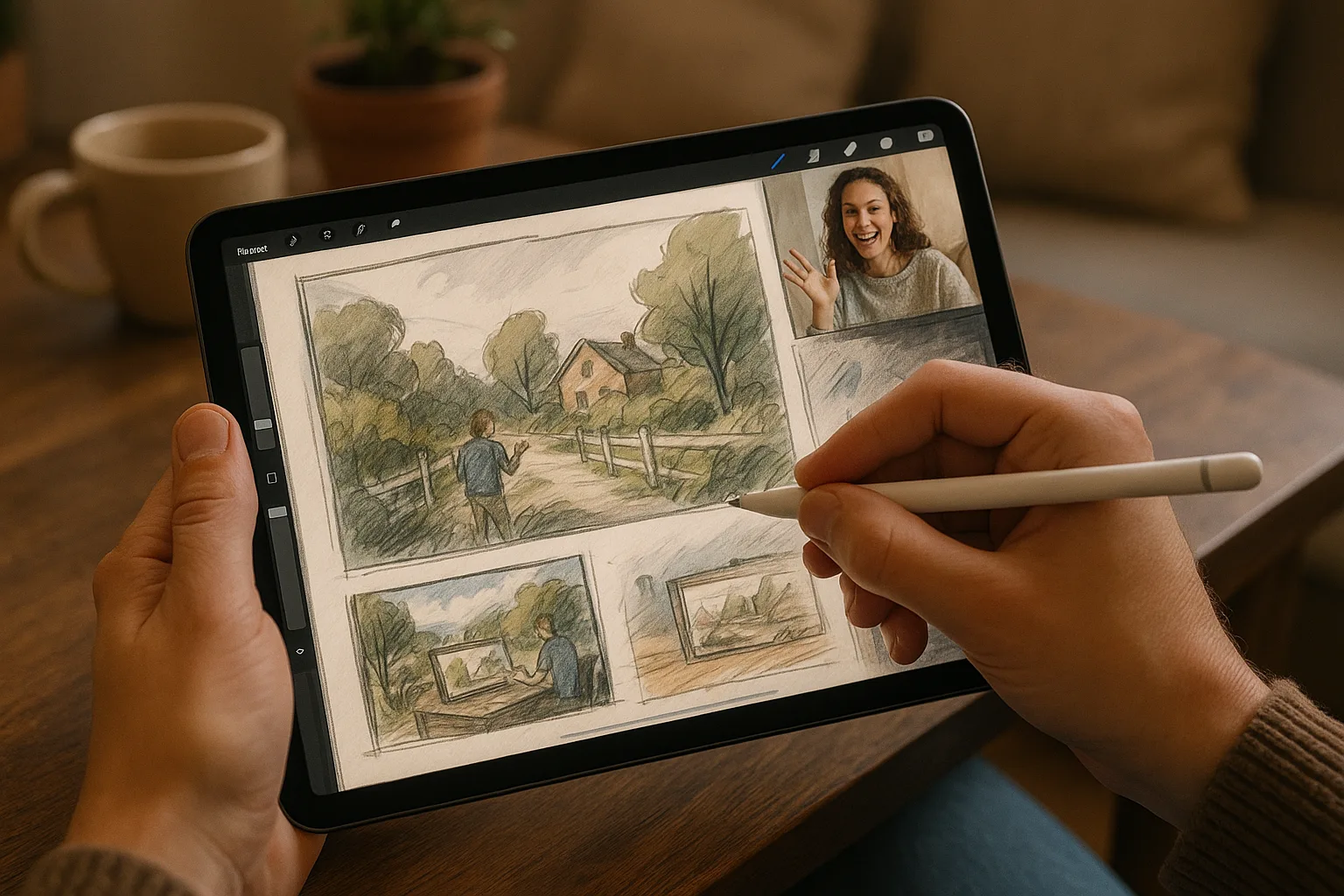
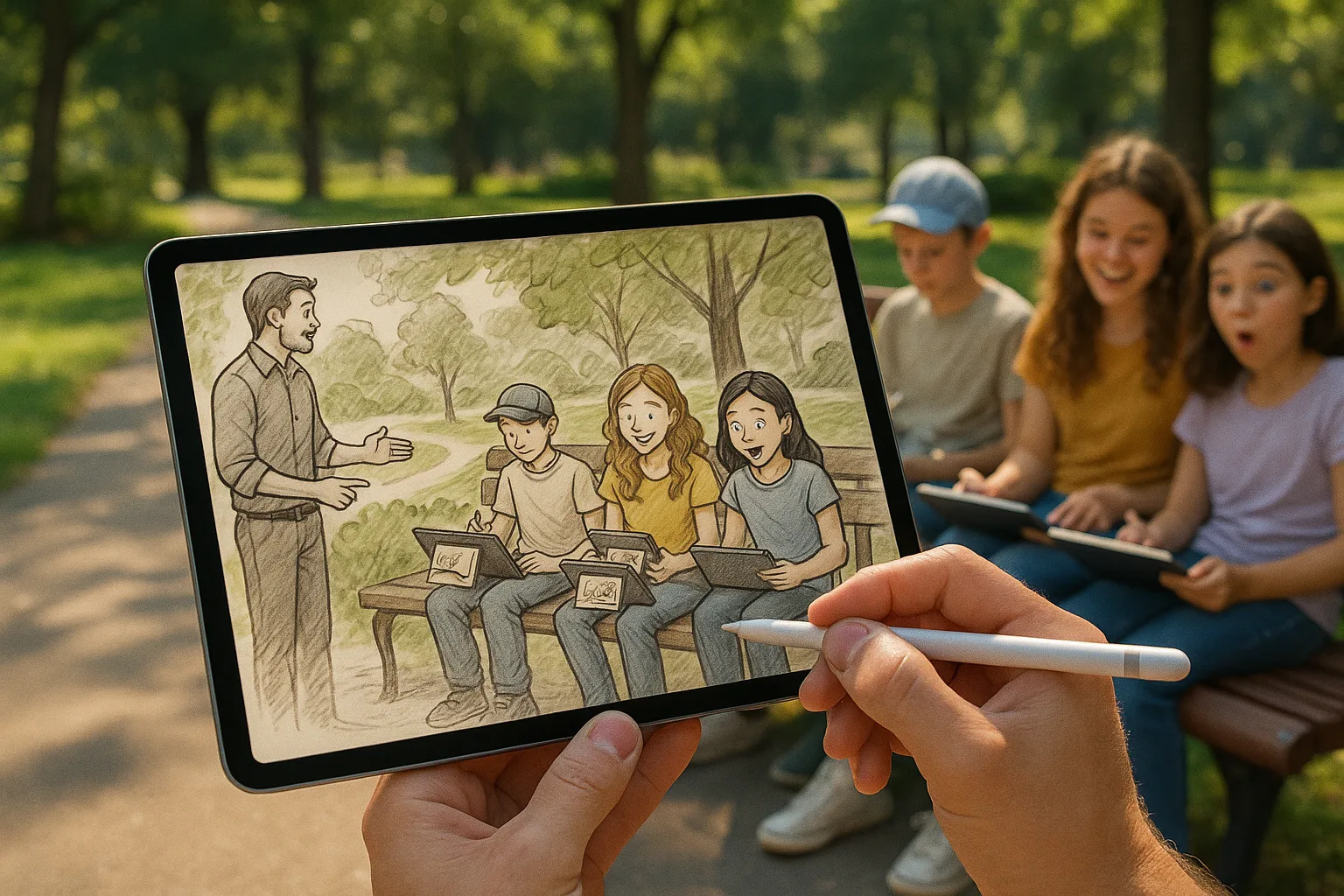
Sketching landscapes on an iPad with Procreate is a fast, flexible way to capture the light and atmosphere of Samara — from the wide Volga embankment and Kuibyshev Square to the Zhiguli Hills and Samarskaya Luka peninsula. This guide gives practical location tips, a step‑by‑step Procreate workflow, recommended settings and brushes, and season‑specific advice so you can make the most of on‑site sketching in Samara.
Best Samara spots for landscape sketching
— Volga Embankment (Набережная): long river horizon, boats, promenades — excellent for sunsets and reflections.
— Strelka (the river confluence area): interesting meeting of water lines, good for compositional intersections.
— Monument of Glory (Памятник Славы) and the adjacent views: elevated vantage, human scale elements.
— Kuibyshev Square (Площадь Куйбышева): huge open space and sky — great for studying scale and light.
— Samarskaya Luka / Zhiguli Hills (Самарская Лука, Жигулёвские горы): dramatic silhouettes, winding Volga bends and wooded foregrounds.
— Rooftop viewpoints or riverside cafes: for quick urban/river combos and dynamic perspectives.
When to go — seasonal & time‑of‑day tips
— Golden hour (sunrise/sunset): long warm shadows on the Volga — ideal for dramatic colors.
— Late spring / early summer: lush greens in Samarskaya Luka, high water reflections.
— Autumn: rich ochres and reds in the hills — strong middle‑ground interest.
— Winter: crisp low sun, cool pastel skies and reflections on slushy water — simplified values make strong sketches.
— Overcast days: perfect for focusing on value and form without color distraction.
Practical on‑site gear & prep
— iPad (Pro or Air recommended) + Apple Pencil (2nd gen preferred for tilt/pressure).
— Paperlike or matte screen protector for tactile feedback.
— Portable battery pack, small tripod or clamp if using a table, foldable stool.
— Quick folder or small spray bottle for lens cleaning, sunscreen, water.
— Offline maps and weather app—Samara’s river breeze can change fast.
— Backup plan: take a photo for reference (high‑res) and enable Procreate time‑lapse if you want a recording.
Procreate canvas & performance settings
— Canvas size: for quick plein‑air sketches choose 2048–3000 px on the longest side to preserve speed and time‑lapse clarity. For print work use 3000–6000 px at 300 DPI (watch memory).
— Layer limit: keep an eye on maximum layers (depends on canvas size and iPad model) — merge when needed.
— Procreate features to enable: *Drawing Guide / Perspective*, *StreamLine* for smoother strokes, and *Time‑lapse Replay* to record your session.
Recommended brushes & why
— Pencil (6B or HB): quick thumbnailing and structural sketches.
— Technical/Studio Pen: crisp linework for architectural elements (promenades, railings).
— Soft Airbrush: sky gradients, subtle fog and atmosphere.
— Textured round brush or watercolor brush: foliage and rough stone texture for the Zhiguli cliffs.
— Smudge tool with textured brush: unify edges and paint atmospherics.
— Eraser (soft): create highlights and refine edges.
Typical layer structure (simple and effective)
1. Reference photo (optional, set as Reference layer).
2. Quick value thumbnail / thumbnail layer (low opacity).
3. Line or structure layer (sketch).
4. Block‑in color layer(s) — separate foreground, middleground, background.
5. Detail layer — textures, architecture, boats.
6. Atmosphere/Glow layer — soft light, mist, sunflare (use low opacity and blend modes).
7. Adjustment layer — color balance / curves / vibrance.
8. Signature / final touches.
Step‑by‑step on‑site workflow
1. Scout a viewpoint and take 1–2 reference photos (different exposures).
2. Create a tiny thumbnail (value study, 2–5 minutes