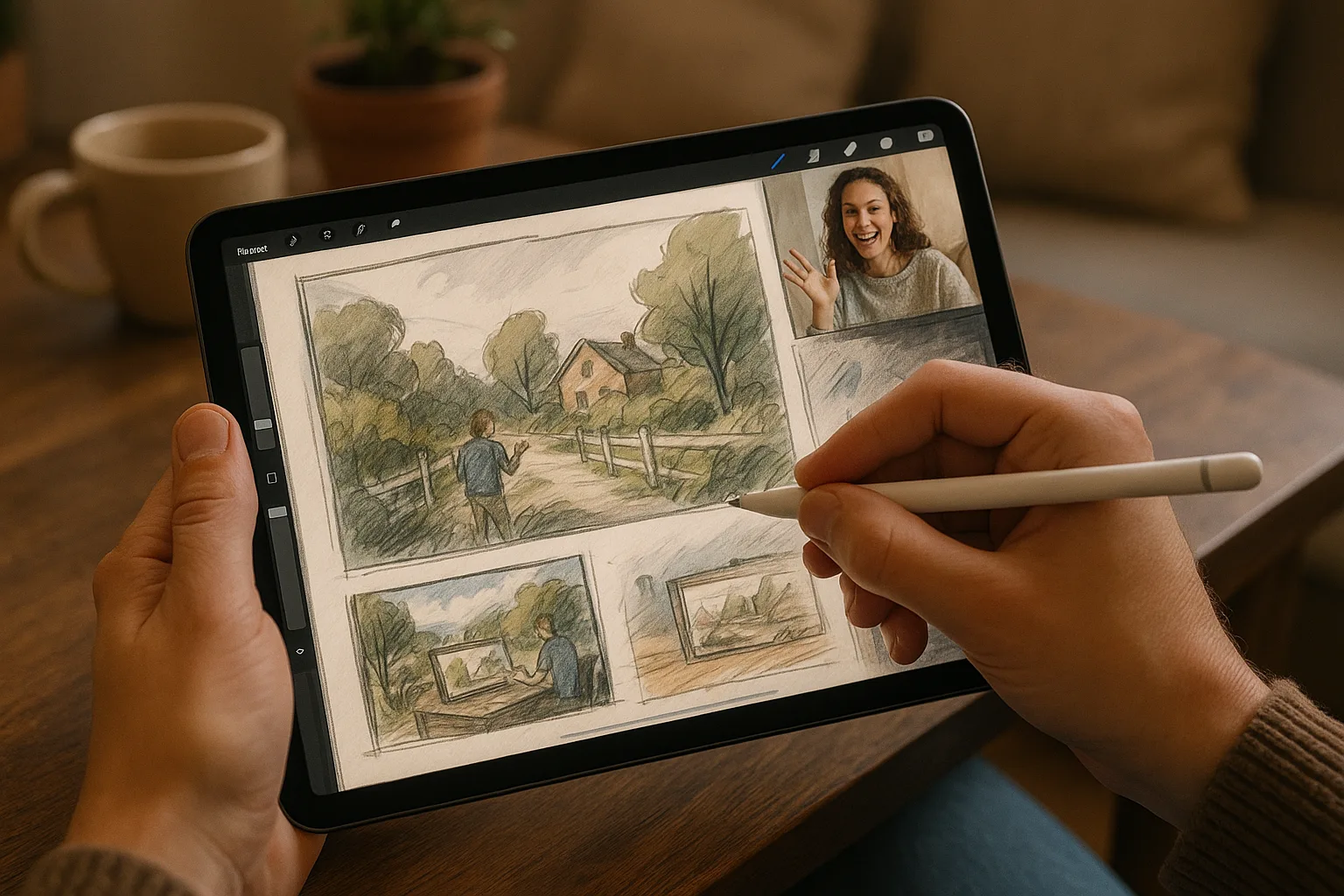
Sketching the Samara Landscape on iPad with Procreate
Capture Samara’s river moods, historic embankments, and the distant Zhiguli hills with nothing more than an iPad, Apple Pencil, and Procreate. Below are practical tips, location ideas around Samara, Procreate setups, and workflows to help you make quick, expressive landscape sketches on the spot and refine them later.
Where to sketch in Samara (locations & subjects)
— Volga Embankment (набережная): sweeping river curves, boats, promenades, and reflections — ideal for leading-line compositions and changing light.
— Samarskaya Luka / Zhiguli Hills (Samara Bend): dramatic slopes and wild outlines across the Volga; great for silhouette studies and atmospheric color.
— Kuybyshev Square and nearby historic center: wide open spaces, monuments, and Stalin-era architecture for structure and perspective practice.
— Parks and hillside viewpoints: find elevations for skyline panoramas at sunrise or sunset.
— Industrial waterfronts and shipyards: strong geometric shapes and moody textures for contrast and narrative sketches.
— Small details around cafes, markets, and tram lines: use for quick studies that inform larger compositions.
Essential gear (portable + comfort)
— iPad (Air/Pro) + Apple Pencil (1st or 2nd gen): pencil pressure and tilt are essential.
— Thin matte screen protector (paper-like) for natural pencil feel.
— Lightweight foldable stool or small mat; weather-appropriate clothing.
— Portable battery pack if you’ll sketch for hours.
— Small sketching pouch for iPad, pencil, and a microfiber cloth.
— Optional: compact tripod or iPad clamp for stability on windy embankments.
Procreate canvas & file settings
— Quick sketches: 2048 × 2732 px at 72–150 dpi (fast and responsive).
— For prints or detailed studio work: 4000–6000 px on the long side, 300 dpi (mind device limits—Procreate max canvas depends on iPad model).
— Name layers and keep things organized from the start (Sketch, Block-in, Value, Details, Atmosphere).
Recommended brush kit & settings
— Sketching / underdrawing:
— 6B Pencil or HB Pencil (built-in) — low opacity for loose lines.
— Charcoal or Rough Pencil for texture.
— Blocking & color:
— Flat Round Brush or Soft Airbrush for broad shapes and sky washes.
— Watercolor or Wet Media brushes for soft transitions (if you have a set).
— Details & edges:
— Technical Pen / Studio Pen for crisp architectural lines.
— Texture brushes (sand, grit, foliage stamps) for ground and tree textures.
— Smudge tool: use low-opacity soft brushes to blend reflections and atmosphere.
— Pressure curve: tweak to get comfortable pressure responsiveness for light sketching vs. bold marks.
Layer workflow (simple and flexible)
1. Sketch layer (low opacity) — fast thumbnail + larger composition sketch.
2. Block-in layer (below sketch) — large color shapes, values; use Clipping Mask for local edits.
3. Value/Light layer (multiply/overlay) — establish midtones, shadows, highlights.
4. Detail layer(s) — buildings, trees, boats, textures.
5. Atmosphere layer — gradients, haze, aerial perspective (lower opacity, Gaussian blur).
6. Adjustment layer(s) — Color Balance, Curves, Hue/Saturation for final mood.
7. Final polish — sharpen or add paper grain, small highlights.
Tip: Use “Reference” for color picking from a photo, and “Alpha Lock” plus clipping masks to paint within areas.
Quick on-site workflow (plein air to finished)
— Step 1 – Thumbnails (2–5 minutes each): test compositions, scale, focal points.
— Step 2 – One-value study (5–15 minutes): map big shapes as silhouettes to get values right.
— Step 3 – Block-in color (10–30 minutes): lay broad local colors